

BUC 360 · INSTALLATION GUIDE
One workspace. Every device.
Install BUC 360 on Windows, Mac, Android, iPhone, iPad or Linux.
Open the app, then follow the instructions for your device. Your browser asks you to confirm installation. Follow the illustrated steps below; menu labels may vary by browser version.
Open BUC 360 / Login ↗https://buc360.buc-cohub.workers.dev/
Windows
Browser: Chrome or Microsoft Edge
Open & sign in
Illustrated guide — browser labels and layout may vary.
- Open BUC 360 using the button above in Chrome or Edge.
- Chrome: click the install icon in the address bar, if shown. Otherwise use the three-dot menu → Cast, save and share → Install page as app. Menu wording may include Install BUC 360.
- Edge: click the app-install icon, or use the three-dot menu → More tools → Apps → Install this site as an app. In some versions Apps appears directly in the menu.
- Confirm BUC 360 and click Install. Choose a desktop shortcut, Start or taskbar pin if offered.
- Open the app from Start or its shortcut and sign in. To pin it later, right-click its taskbar icon → Pin to taskbar.
- Remove it through Windows Settings → Apps → Installed apps, or edge://apps / chrome://apps.
MacBook / Mac
Browser: Safari on macOS Sonoma 14 or later, or Chrome
Open & sign in
Illustrated guide — browser labels and layout may vary.
- Open BUC 360 in Safari.
- Choose File → Add to Dock in the macOS menu bar, or Safari Share → Add to Dock.
- Enter BUC 360 and click Add. Open it from the Dock, Spotlight or your home folder’s Applications folder.
- If Add to Dock is unavailable, check your macOS version. Alternatively use a supported, up-to-date Chrome: install icon, or three-dot menu → Cast, save and share → Install page as app → Install.
- For Chrome apps, use chrome://apps to find BUC 360. While running, right-click the Dock icon → Options → Keep in Dock if available.
- Remove a Safari web app via Finder → Go → Home → Applications → move BUC 360 to Trash.
Android phone / tablet
Browser: Google Chrome
Open & sign in
Illustrated guide — browser labels and layout may vary.
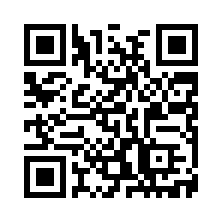
- Open the app in Chrome, or scan the QR code with your camera and open the result in Chrome.
- Use the app’s Install button if available, or Chrome’s three-dot menu → Add to Home screen → Install. Some versions show Install app directly.
- Confirm the browser and Android prompts. If only Create shortcut is offered, this adds a browser shortcut instead of a full app installation.
- Find BUC 360 on the Home screen or app drawer; placement varies by device.
- Open it and sign in. If the link opened inside WhatsApp or another app, first choose Open in browser.
- To remove it, long-press the app icon → Uninstall, or Settings → Apps. For a shortcut, use Remove.
iPhone / iPad
Browser: Safari
Open & sign in
Illustrated guide — browser labels and layout may vary.
- Open BUC 360 in Safari. After scanning the QR code, make sure the link opens in Safari.
- Tap Share (square with an upward arrow). Some Safari layouts use Page Menu → Share.
- Scroll through the actions → Add to Home Screen. If missing, check Edit Actions.
- Keep the name BUC 360. Turn on Open as Web App if that option is shown, then tap Add.
- Find the icon on the Home Screen, open it and sign in. The installed app may ask you to sign in again.
- To remove it, long-press the icon and use the available Remove App / Delete App / Delete Bookmark action. This web installation does not require the App Store.
Linux desktop
Browser: Google Chrome; compatible Chromium builds may also work
Open & sign in
Illustrated guide — browser labels and layout may vary.
- Open BUC 360 in an up-to-date Google Chrome.
- Click the install icon in the address bar, or three-dot menu → Cast, save and share → Install page as app.
- Confirm BUC 360 and click Install. If your Chromium build lacks installation support, use Chrome or continue in a browser tab.
- Find BUC 360 in the Applications menu or chrome://apps. Launcher and shortcut placement depend on your distribution and desktop environment.
- Use your desktop environment’s Pin / Add to favorites option if wanted. Open the app and sign in.
- To uninstall, open chrome://apps and use the app’s remove/uninstall option.
Login, updates & troubleshooting
- Sign in using the options shown on the app login screen. Use the same account to access your company workspace on other devices.
- Internet is required for login, saving and syncing business records, uploads and payments. Offline operation is not guaranteed.
- Installing the app does not activate a paid plan or charge your card. Subscription purchase is separate.
- The QR code opens the app link; it does not install automatically. On the same phone, tap Open BUC 360 instead of scanning.
- If Install is missing, check whether BUC 360 is already installed; update your browser; leave private/incognito mode; and check workplace/device restrictions. Continue in a browser if installation is unavailable.
- Web updates normally load online. Close and reopen the app if an update is not visible. Keep your browser updated.
- Removing the app icon does not cancel a subscription or delete the online company account.